 AllQRCode
Event to QR Code Converter: Effortless Calendar Management
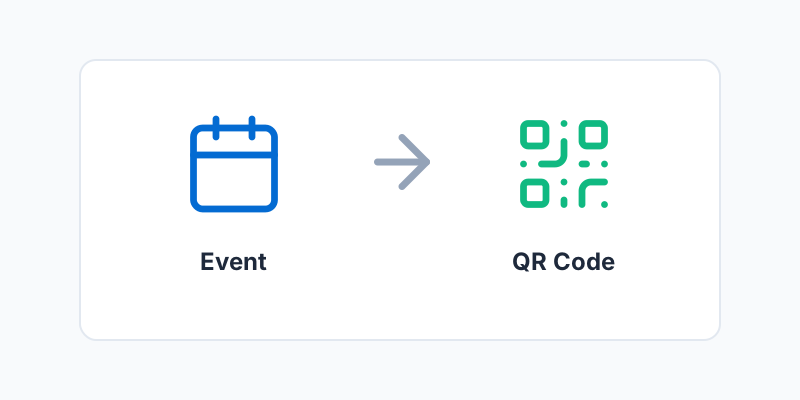
In event planning, your biggest enemy is friction. Whether you are organizing a massive corporate conference, a local music festival, or an intimate wedding, the success of your event depends entirely on attendees actually showing up. If you hand someone a paper flyer with a date and time, you are relying entirely on their memory or their willingness to manually type that information into their digital calendar later.
An Event to QR Code Converter solves this problem instantly. By generating a calendar-ready barcode, you allow guests to scan your invitation and instantly save all the event details—including the title, start time, end time, location, and a brief description—directly into their smartphone's native calendar app (like Apple Calendar or Google Calendar). In this comprehensive guide, we will explore the technical mechanics behind Event QR codes, their most powerful use cases, and how to create them for free.
How Does an Event QR Code Work?
Unlike simple URL codes, an Event QR code relies on a specific data structure known as the vCalendar or iCalendar (ICS) format. This is a globally recognized standard for exchanging calendar and scheduling information across different software platforms. When you input your event details into our free generator, it formats the data into a string that looks like this:
BEGIN:VEVENT
SUMMARY:Annual Tech Conference
DTSTART:20261015T090000Z
DTEND:20261015T170000Z
LOCATION:123 Main St, Tech City
DESCRIPTION:Join us for a day of innovation.
END:VEVENT
This entire text block is then mathematically converted into the black-and-white pixels of a QR code. Because both iOS and Android natively understand the VEVENT protocol, scanning the code triggers the operating system to intercept the data and launch the default calendar app, presenting the user with a pre-filled "Add Event" screen. The user simply taps "Save" to add it to their schedule, complete with automated reminders.
Why Event Organizers Love Calendar QR Codes
- Drastically Reduce No-Shows: When an event is saved in a digital calendar, the user receives automated push notifications as the event approaches. This dramatically increases attendance rates compared to relying on physical tickets alone.
- Zero Typos or Timezone Confusion: If a user manually enters an event, they might accidentally select the wrong day or miscalculate the time zone. A QR code ensures the data is perfectly accurate and automatically adjusts to the user's local time zone upon scanning.
- Print to Digital Bridge: It turns static, printed marketing materials (like posters, billboards, and direct mail) into actionable, trackable digital touchpoints.
How to Create an Event QR Code for Free
Generating your custom, high-quality Event QR code on AllQRCode is entirely free. Follow these steps:
- Enter the Event Title: Keep it concise but descriptive (e.g., "Sarah & John's Wedding" or "Q3 Marketing Seminar").
- Set the Dates and Times: Carefully select the exact Start and End dates and times. Crucial tip: Double-check AM/PM settings, as this is the most common mistake when generating calendar codes.
- Add Location and Description: Provide the full address so their calendar app can provide driving directions on the day of the event. Use the description field to add parking instructions or dress codes.
- Customize the Design: Match the QR code to your event's theme! Change the colors to match your wedding palette or corporate branding, and round the edges for a softer look.
- Add a Calendar Icon: Upload a calendar icon or your event logo to sit directly in the center of the code, signaling to guests exactly what will happen when they scan it.
- Test and Download: Always scan the preview with your smartphone to ensure it saves correctly in your calendar, then download the high-resolution PNG or SVG file.
Best Practices for Event Promotion
Concert Posters and Flyers: If you are promoting a local band, put a massive QR code on your street posters. Fans walking by can scan it to instantly save the gig to their calendar before they forget.
Save-the-Date Cards: Wedding planners love QR codes. Adding one to a physical Save-the-Date card ensures guests block off the weekend months in advance without having to manually type anything.
Corporate Webinars: Print the code on direct mailers or physical conference brochures so executives can easily schedule time for your breakout sessions.
Frequently Asked Questions (FAQ)
Does scanning the code automatically save the event?
No. To prevent malicious codes from spamming a user's calendar, mobile operating systems require confirmation. Scanning the code opens the calendar app and displays a preview of the event. The user must manually tap "Add" or "Save" to finalize it.
Does it work with both Apple Calendar and Google Calendar?
Yes. The underlying protocol used by our generator (vCalendar/ICS) is a universal standard. If a user scans it with an iPhone, it will open Apple Calendar. If scanned with an Android, it typically opens Google Calendar or the manufacturer's default scheduling app.
Can I change the event time after I print the QR code?
No. The QR codes generated here are static, meaning all the event details—including dates and times—are permanently baked into the visual design of the barcode. If your event gets delayed, you will need to generate and distribute a new QR code.
Why is my Event QR code so dense and hard to scan?
Because Event QR codes contain a lot of text data (title, dates, location, and description), the resulting barcode can become very dense with tiny pixels. If it is hard to scan, try shortening your event description or printing the code at a larger physical size (at least 2x2 inches).
What calendar apps are supported?
Event QR codes use the standard iCalendar (VEVENT) format, which is natively supported by Apple Calendar, Google Calendar, and Microsoft Outlook.
Can I include an event location or description?
Our free tool currently supports the Title and Times to keep the QR code simple and scannable. Adding too much text can make the code too dense to scan easily.
Does it automatically adjust for time zones?
For best results, you should ensure the user's phone is in the correct time zone, as basic Event QR codes often default to the scanner's local device time.
Are my files and data safe with AllQRCode.com?
Yes. AllQRCode does not track, intercept, or permanently store any of the personal data you enter into our generators. Your privacy and data security are our top priorities.
Is AllQRCode.com really 100% free?
Yes! Our platform is completely free to use with no hidden fees, no required sign-ups, and absolutely no scan limits.
Do the QR codes generated on AllQRCode ever expire?
No. All of the static QR codes generated on our platform are permanent and will never expire, making them completely safe for commercial printing and packaging.